Most generation runs complete without any issues. When something does go wrong, the problem usually falls into one of the categories below. Work through them top-to-bottom — the first match is almost always the cause.
Run is stuck in "Pending" for more than 10 minutes
Cause: All parallel execution slots are occupied by other jobs.
What to do:
- Open Queue Statistics (green Queue button, top-right).
- Check the Parallel Executions bar. If it shows maximum capacity
(e.g.
3 / 3), your job is legitimately waiting for a slot. - Wait until at least one Processing job finishes — your run will pick up the slot automatically.
- If the count stays at maximum for more than 30 minutes and none of the Processing jobs seem to progress, raise it with the platform team — one of the running jobs may be hung.
There is no need to cancel and re-submit. The job stays in the queue safely until a slot opens.
Run moved to "Failed"
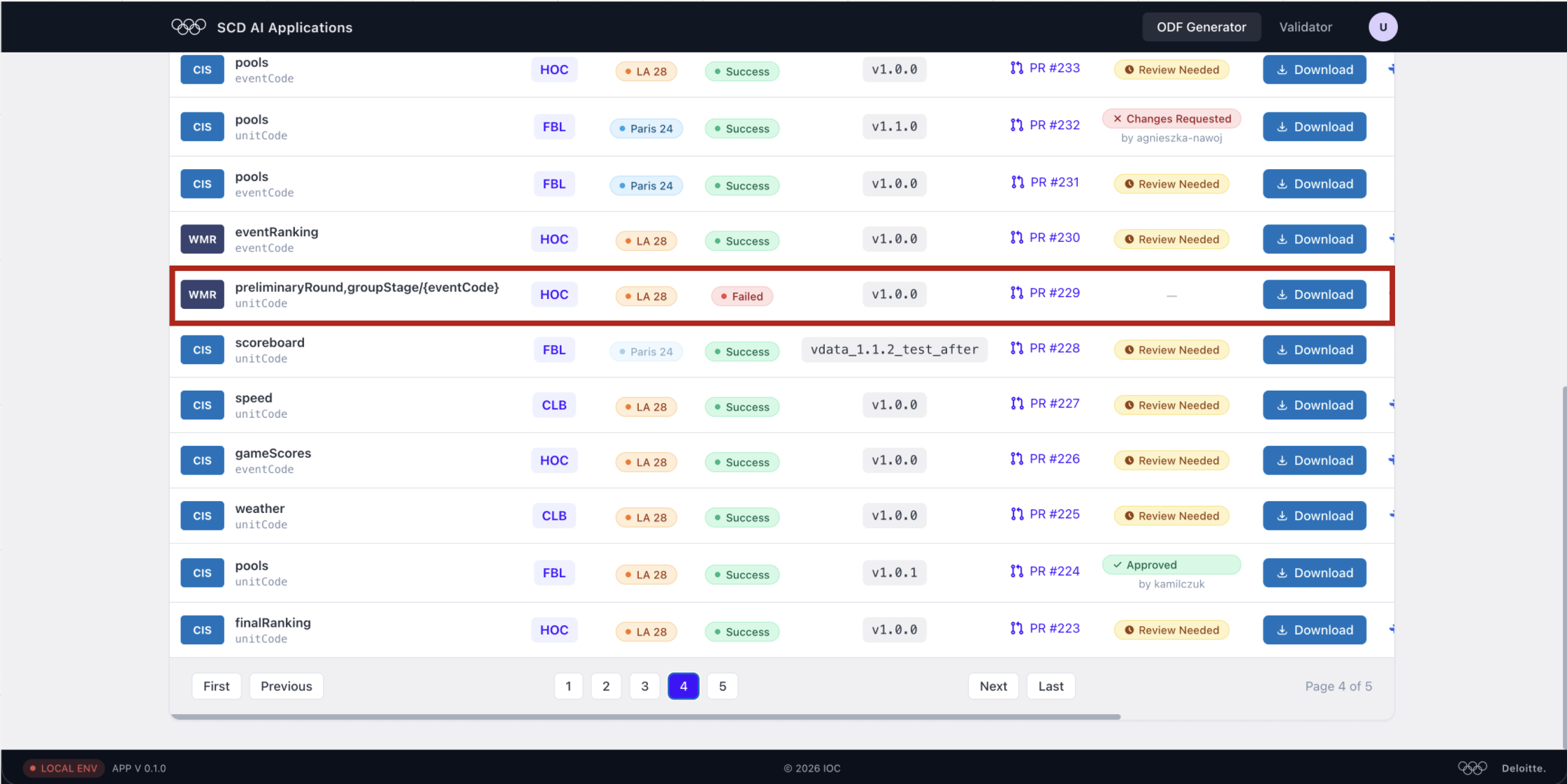
⚠️ Warning — check your inputs first. In ~80% of cases, a failed run is caused by incorrect input data entered during task creation — not by a platform issue. Before investigating anything else, go back to the Generate your first dataset lesson and verify every field you filled in.
Most common cause: wrong endpoint name
A very frequent mistake is combining multiple endpoints into a single Component Name field, or appending dynamic path segments to it.
Example from the run above:
❌ Wrong:  preliminaryRound,groupStage/{eventCode}
✅ Correct: preliminaryRound
            + groupStage  ← added as a separate endpoint
The Component Name field must contain one component only. If your dataset depends on additional components, add them individually using the Add Endpoint feature — not by concatenating names with commas or slashes.
See Step 6 — Add endpoints in the Generate your first dataset lesson for a step-by-step walkthrough of adding sub-endpoints correctly.
Other failure causes
| Symptom | Likely cause | Action |
|---|---|---|
| Failed immediately (under 1 min) | Invalid BDD input — the parser found nothing to work with | Fix the BDD text and trigger a new run |
| Failed after 5–10 min | Data Dictionary or Common Codes lookup returned no match | Check the discipline code and component name for typos |
| Failed after 10+ min | Agent hit a timeout or an upstream MCP service was unavailable | Wait 5 minutes and re-trigger; if it fails again, contact support |
| Repeated failures on the same component | Incompatible version bump (e.g. PATCH already taken) | Select MINOR or MAJOR, or enter the version manually |
To re-trigger after fixing the issue, click + New Generation and fill in the same parameters. The previous failed run stays in the list for reference — it won't interfere with the new one.
Run completed but the ZIP is empty or missing files
Cause: The agent could not generate any AC that passed validation. This usually means:
- The BDD criteria were too vague for the parser to extract Given/When/Then steps.
- Every generated XML file failed schema validation and was excluded from the package.
What to do:
- Open the Parsed AC Points tab (in the New Generation form) before triggering again to verify the parser extracted the expected ACs.
- Look for warnings in the top-right corner of that tab — they point to structurally incomplete ACs.
- Fix the source BDD text and re-trigger.
Pull Request column is empty after a successful run
A Success status means the agent finished, but the PR column can be empty in two situations:
- Auto-refresh hasn't fired yet — click the ↺ refresh icon to sync immediately. The PR link should appear within seconds.
- PR creation failed silently — if refreshing doesn't help after a
few minutes, check the GitHub repository for a branch named after your
component and version. If the branch exists but has no open PR, create
one manually pointing at
main.
Version is locked / shown in red
The selected version has already been used by an existing successful run for the same component and discipline. Version numbers cannot be reused.
- Choose the next MINOR or MAJOR bump.
- Or switch to Enter version manually and type the correct version.
When nothing above helps
If you have double-checked all input data and the run still fails:
- Note the run ID (visible in the URL when you click View on a run) and the exact error message if one is shown.
- Attach a screenshot of the Queue Statistics panel and the failed run row.
- Contact the platform team directly:
Clicking the link above opens a pre-filled email with the relevant fields. Fill in the Run ID, Component, Discipline, and Error message, attach a screenshot, and send.
The platform team can inspect agent logs by run ID and pinpoint the root cause quickly.