After you click Trigger Workflow, the run is queued immediately and the AI agent starts working in the background. You don't need to stay on the page — but if you do, this lesson shows exactly what to watch.
Expected time: generation typically takes 10–20 minutes depending on the number of BDD acceptance criteria and queue load. Runs with more ACs or complex components may take longer.
Locating your run
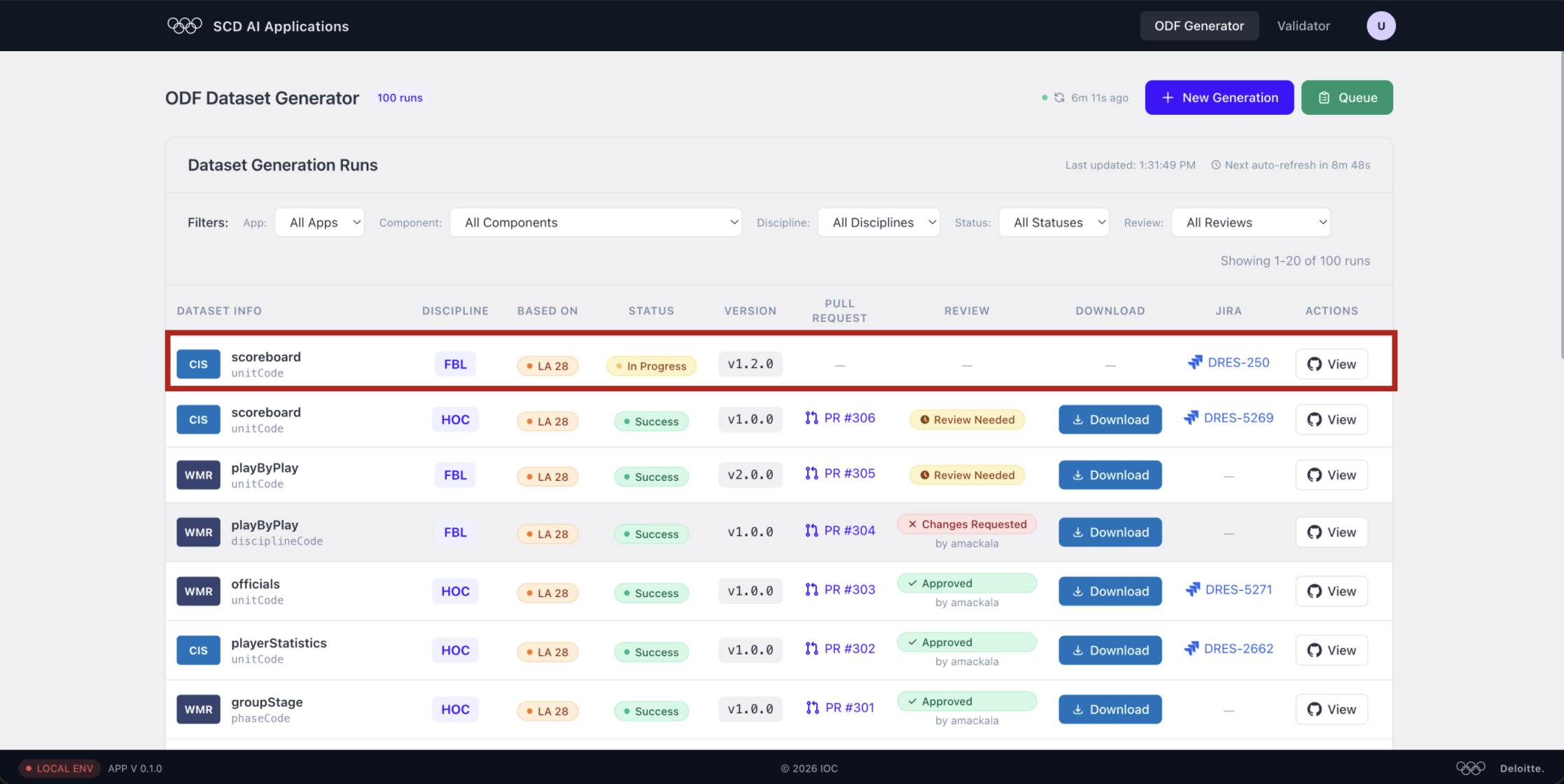
Your new run appears at the top of the Dataset Generation Runs table the moment it is queued. Look for your component name and discipline — the Status column will show In Progress (orange badge) while the agent is working.
The Version column shows the bump you selected (e.g. v1.2.0). The
Pull Request and Review columns are empty for now; they fill in once
generation succeeds.
Monitoring the queue
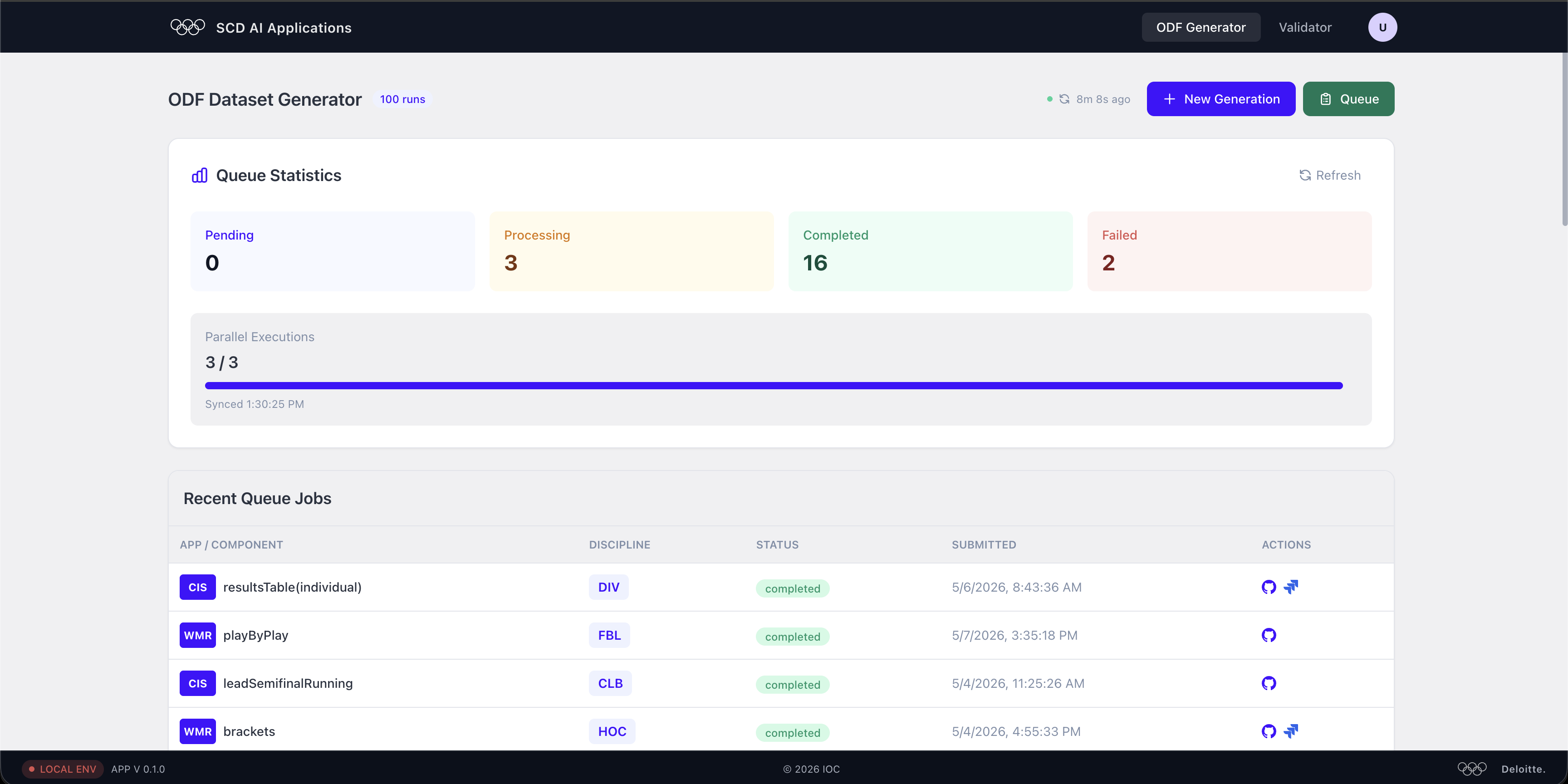
Click the Queue button (top-right) to open the Queue Statistics panel. It gives you a live overview of all jobs across all users:
| Counter | Meaning |
|---|---|
| Pending | Jobs waiting to start |
| Processing | Jobs actively running right now |
| Completed | Jobs that finished successfully |
| Failed | Jobs that ended with an error |
The Parallel Executions bar shows how many slots are in use out of the
total capacity (e.g. 3 / 3 means the queue is at full load). If all slots
are taken, your job waits in Pending until one frees up — this can add
a few extra minutes.
Opening the queue from the runs list
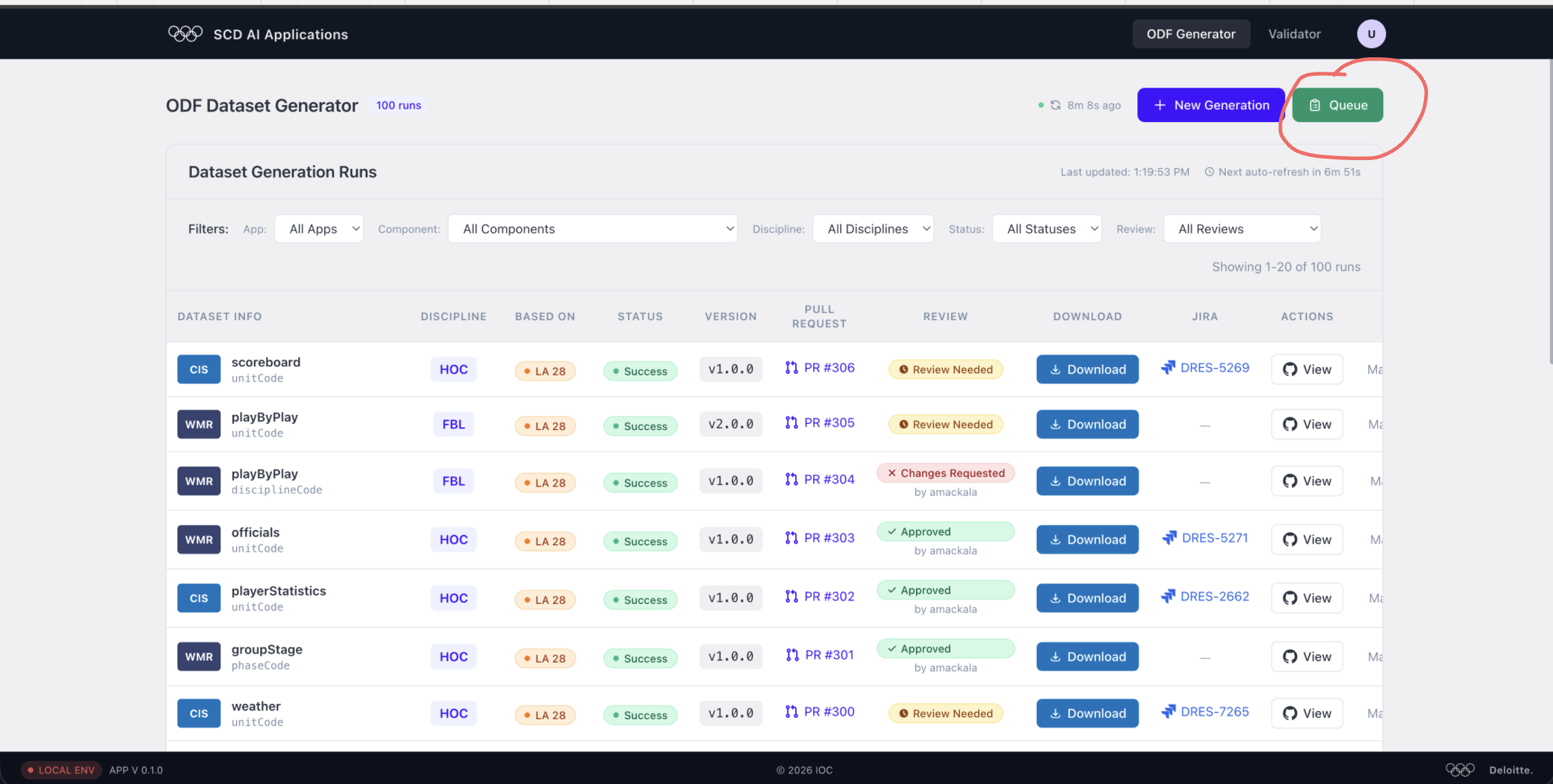
You can reach the Queue panel at any time from the main runs list — the green Queue button is always visible in the top-right corner. Use it to quickly check whether the queue is busy before submitting a new run.
Refreshing the data
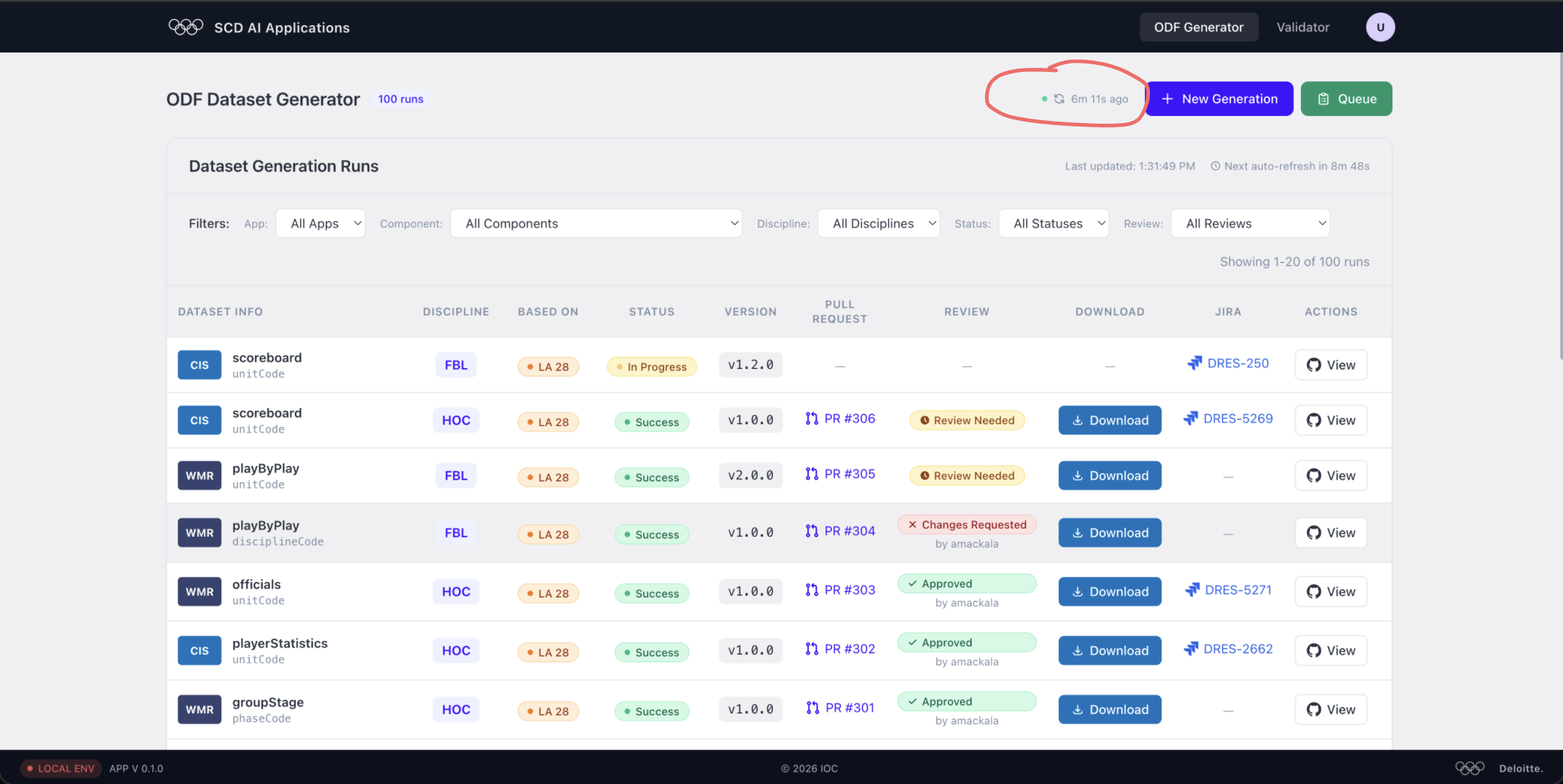
The runs list auto-refreshes on a fixed schedule. The timer next to the refresh icon (e.g. 6m 1s ago) tells you when the data was last synced and when the next automatic refresh is due (Next auto-refresh in X min).
If you want an immediate update:
- Click the refresh icon (↺) next to the timer to force a sync right now.
- Or simply wait — the page will update on its own.
There is no need to keep reloading the browser tab manually.
What to do while you wait
- Close the tab and come back later — the run continues in the background.
- Check the Queue Statistics panel if you're curious about current load.
- Once the Status badge turns Success, the Pull Request column populates and a Download button appears — that's your cue to move on to validation.