While you review an XML file, the app automatically checks every value against a set of validator rules. This lesson explains what those rules are, how a broken rule looks during a review, and how you can create your own smart rules so the same mistake gets caught automatically next time.
1. What are validator rules?
A validator rule is a saved condition that every dataset is checked against at validation time. If a value doesn't satisfy the rule, that value is flagged so it can be fixed before the dataset is approved.
There are two kinds:
| Type | What it does |
|---|---|
| Smart Rules | Structured expression rules — for example "field A must equal field B". They can compare values across different files in the same AC bundle. |
| DOs / DON'Ts | Simpler do / don't guidance applied during validation. |
Smart rules are the powerful ones: they let you express a relationship between two fields and have it checked everywhere, automatically.
2. Spot a rule violation in the review
When a value breaks a rule, its line is highlighted red in the XML viewer and counts toward the Rule Violations badge at the top of the file.
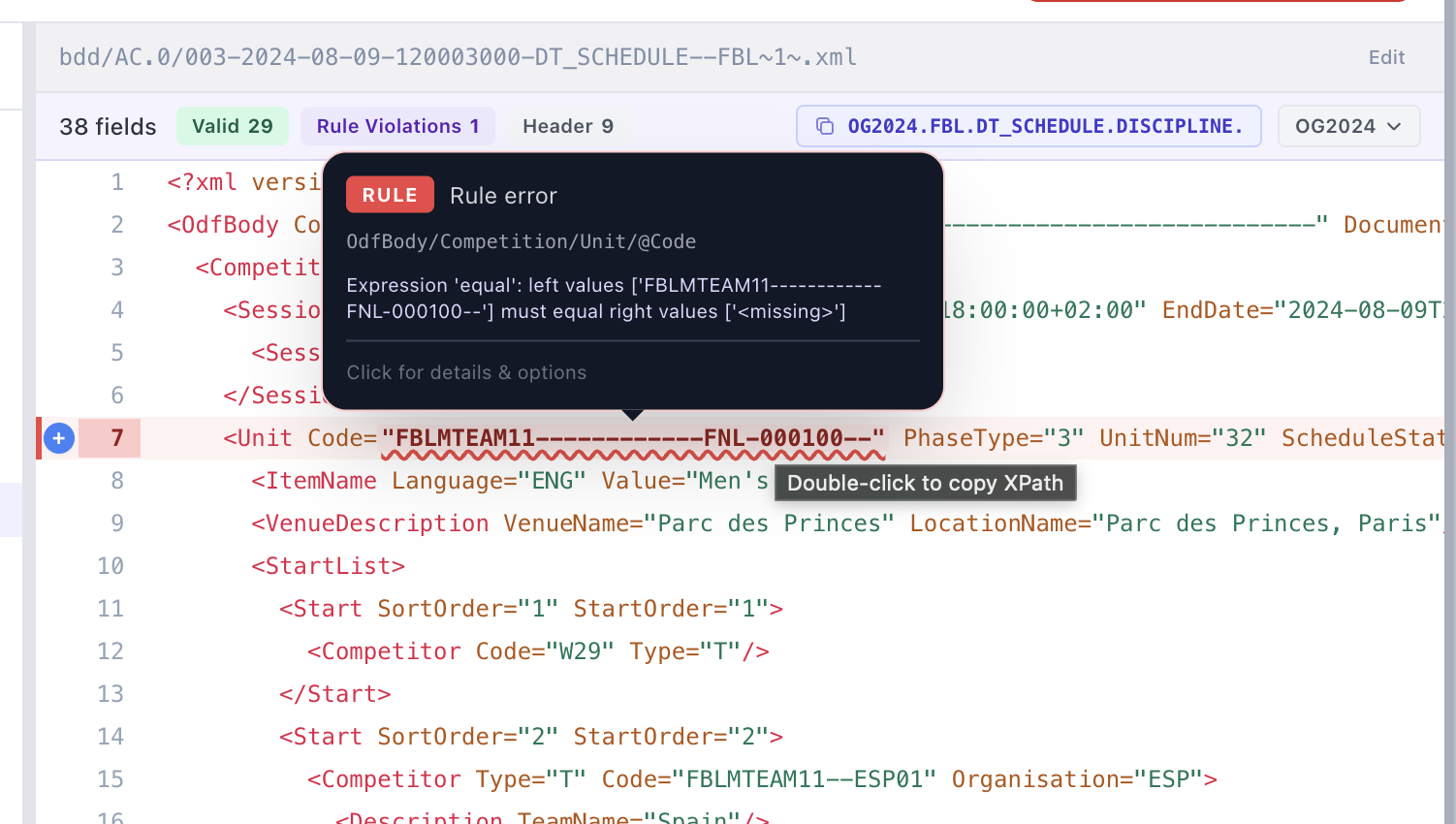
Hover the flagged line to see a quick Rule error tooltip. It shows:
- The XPath of the field (e.g.
OdfBody/Competition/Unit/@Code). - What the rule expected — for example "Expression 'equal': left values […] must equal right values ['<missing>']".
Click the line for the full details and options.
3. Read the rule error detail
Clicking a violation opens the This value breaks a validation rule dialog.
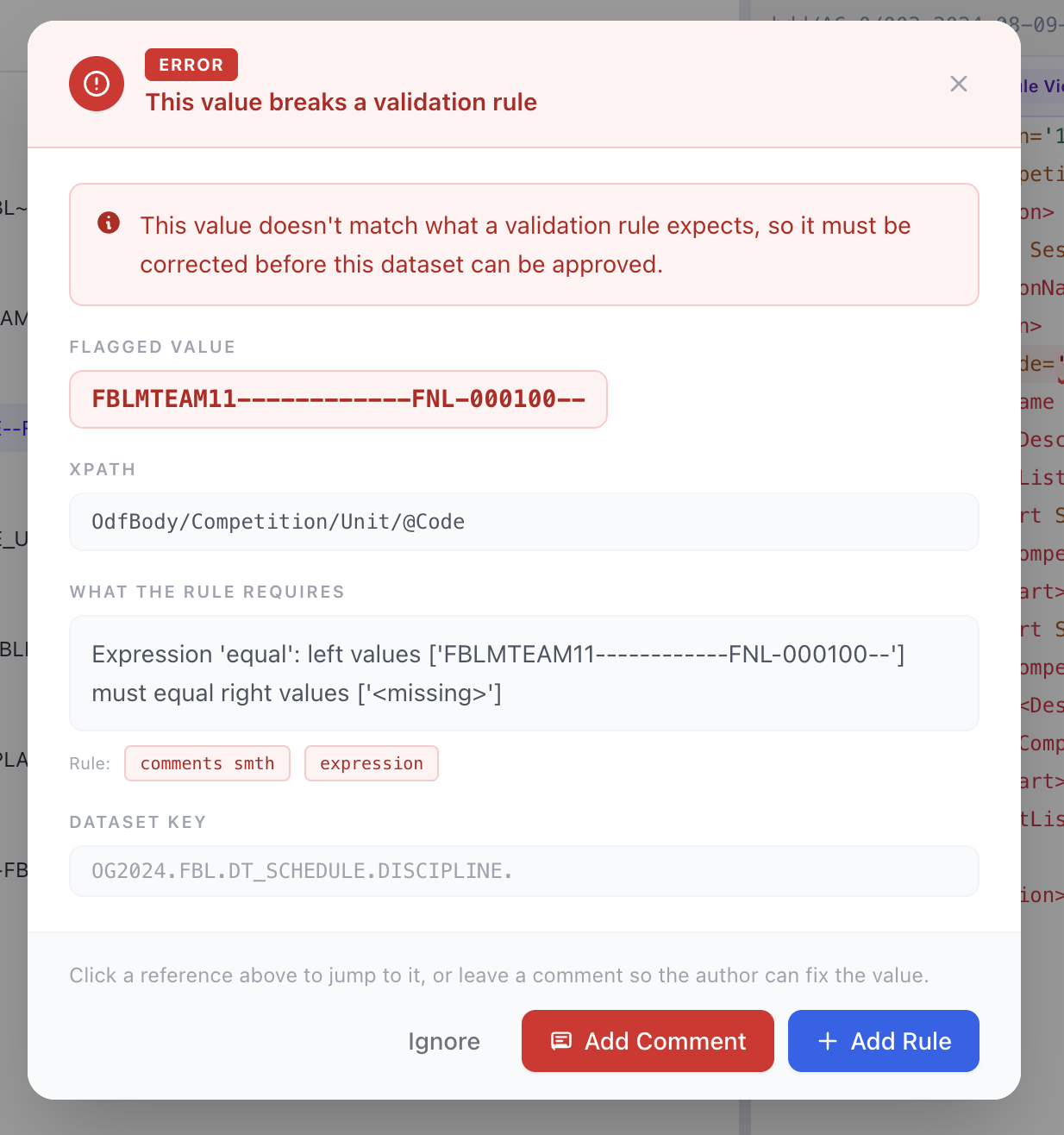
It explains everything you need to decide what to do:
| Field | Meaning |
|---|---|
| Flagged value | The actual value that failed. |
| XPath | Where in the file the value lives. |
| What the rule requires | The condition the value must satisfy. |
| Rule | Which rule caught it (name + type, e.g. expression). |
| Dataset key | The bundle/scope the rule applies to. |
You then have three choices:
- Ignore — dismiss this flag if it's a false alarm.
- Add Comment — leave a note so the author fixes the value.
- Add Rule — open the Smart Rule Creator to define a new rule from here.
A rule violation marked error must be corrected before the dataset can be approved.
4. Build a smart rule by picking fields
The Smart Rule Creator lets you build a rule visually — you click values directly in the XML instead of typing XPaths.
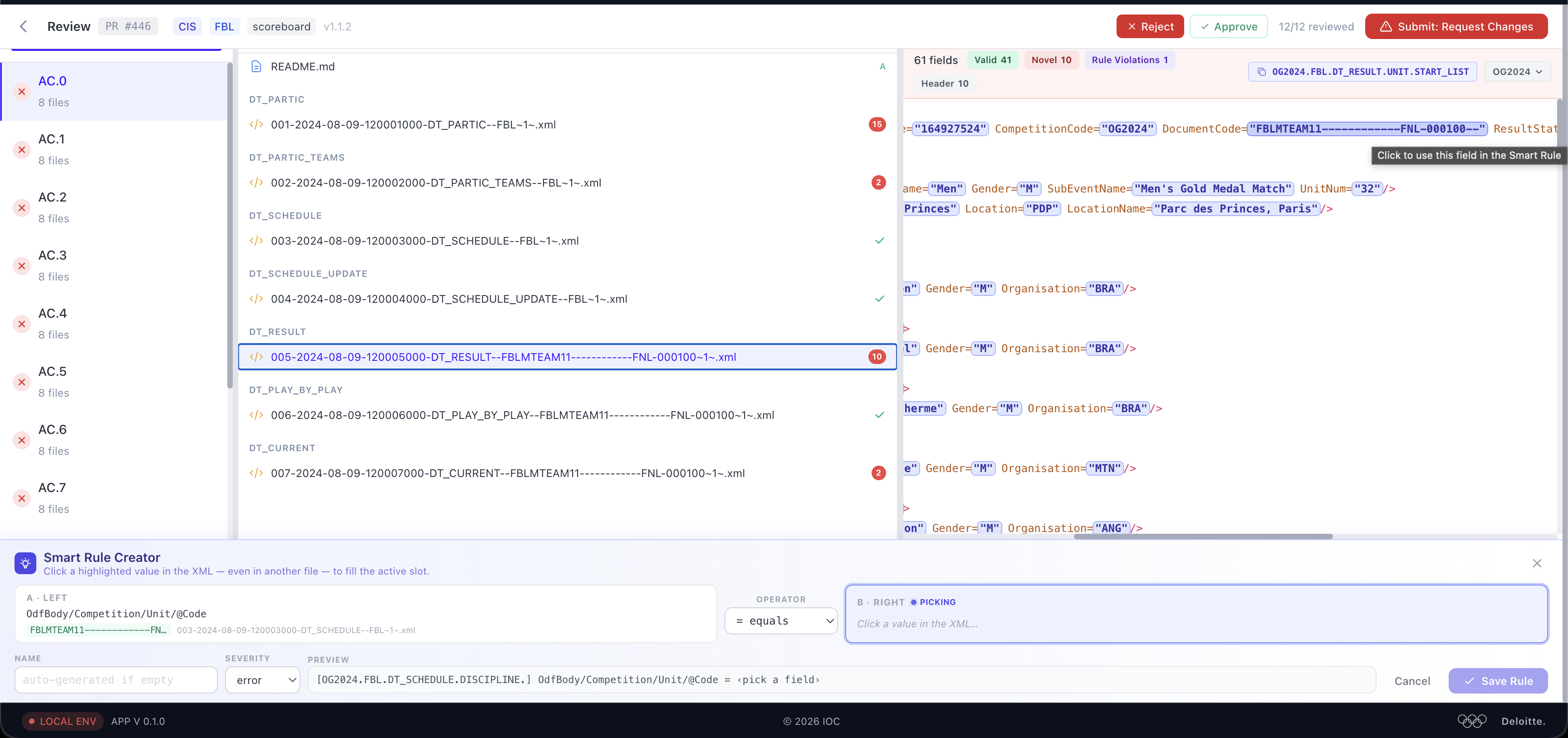
A smart rule compares two sides with an operator:
| Slot | How you fill it |
|---|---|
| A — Left | The first field. Click a value in the XML to load it. |
| Operator | The comparison, e.g. = equals. |
| B — Right | The second field. With the slot in picking mode, click any value in the XML — even in another file — to fill it. |
As you pick each side, the highlighted field shows "Click to use this field in the Smart Rule". The Preview line at the bottom builds the full condition as you go.

Once both sides are set:
- Give the rule a Name (optional — auto-generated if left empty).
- Set the Severity (e.g.
error). - Check the Preview reads what you intend.
- Click Save Rule.
In the example above, the rule says the Unit/@Code in DT_SCHEDULE must
equal the @DocumentCode in DT_RESULT — a cross-file consistency check.
5. Manage rules in the Validator page
All saved rules live under the Validator tab, on the Validator Rules screen.
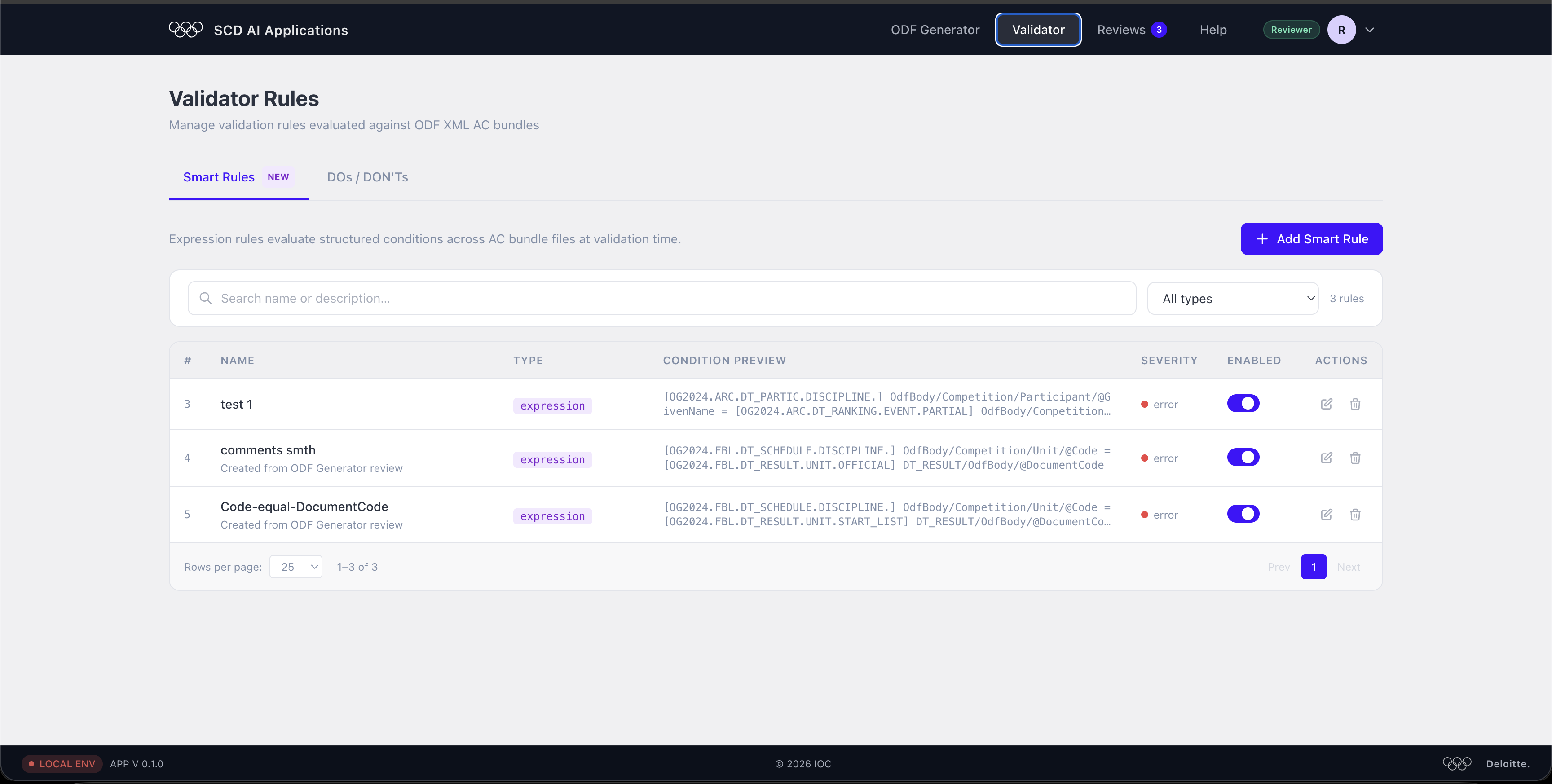
The Smart Rules tab lists every expression rule. For each rule you can see:
| Column | Meaning |
|---|---|
| Name | The rule name (rules made during review are tagged Created from ODF Generator review). |
| Type | The rule kind, e.g. expression. |
| Condition Preview | The full condition the rule checks. |
| Severity | error, etc. |
| Enabled | Toggle the rule on or off without deleting it. |
| Actions | Edit or delete the rule. |
From here you can also:
- Use + Add Smart Rule to create a rule from scratch.
- Search rules by name or description and filter by type.
- Switch to the DOs / DON'Ts tab for the simpler rule set.
Every enabled rule is applied automatically the next time a dataset is validated — so a rule you add today catches the same problem in every future review.